One of the most common ways of collecting qualitative data for humanistic inquiries is through conducting interviews. However, documenting and digitizing interview responses can be daunting and time-consuming, especially for lengthy and substantive conversations that last for hours. In situations like this, an AI assistive tool such as Otter.ai could come in extremely handy. Otter.ai is a real-time transcription software that records audio and directly converts it to written text in a digital form. The platform helps streamline the compiling process which often requires one to spend extra hours toggling back and forth between the audio file and a text editor. Compared to manual transcription, using Otter.ai offers a much less labor-intensive solution to note-taking. With the auto-generated transcripts, a DH researcher can dive right into text analysis, network analysis or further data visualization in no time after their fieldwork.
How to Interact with Your OtterPilot: The Beginner’s Guide
Step 1
Ready for an enlightening conversation? Click on Record on the top right and start a new recording right away. Otter.ai collects voices in the background and takes them down as words on the spot. Alternatively, Import an audio file in AAC, MP3, M4A, WAV, WMA, MOV, MPEG, MP4, or WMV format from your computer.


Step 2
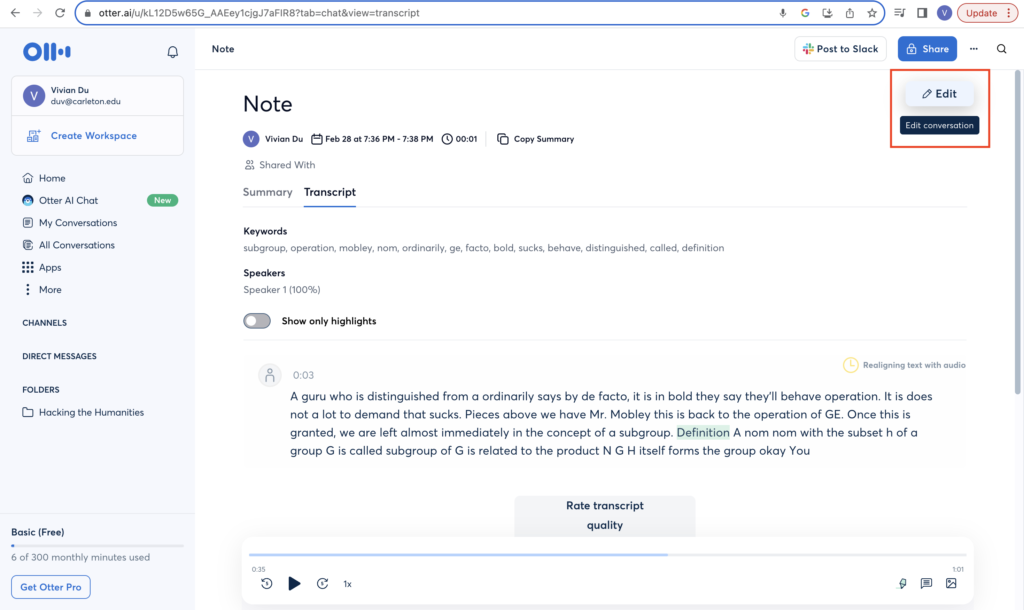
The Otter.ai interface comes with interactive features that allows you to tweak (especially if there are errors in the transcript) and engage with its output. Clicking on Editing turns the conversation into an editable version in a text box. Hop your cursor on any word, phrase, or sentence to highlight, react to, or comment on a selected snippet of the transcribed text.
Step 3
Like most applications in the Google Suite, Otter.ai allows the note owner to share a conversation so that team members can collectively contribute to proofreading, organizing, and publicizing the generated material. Click the blue Share button in the upper right corner. In the pop-up window, you can add people through email and assign them the role of either a Collaborator or Viewer.

Step 4
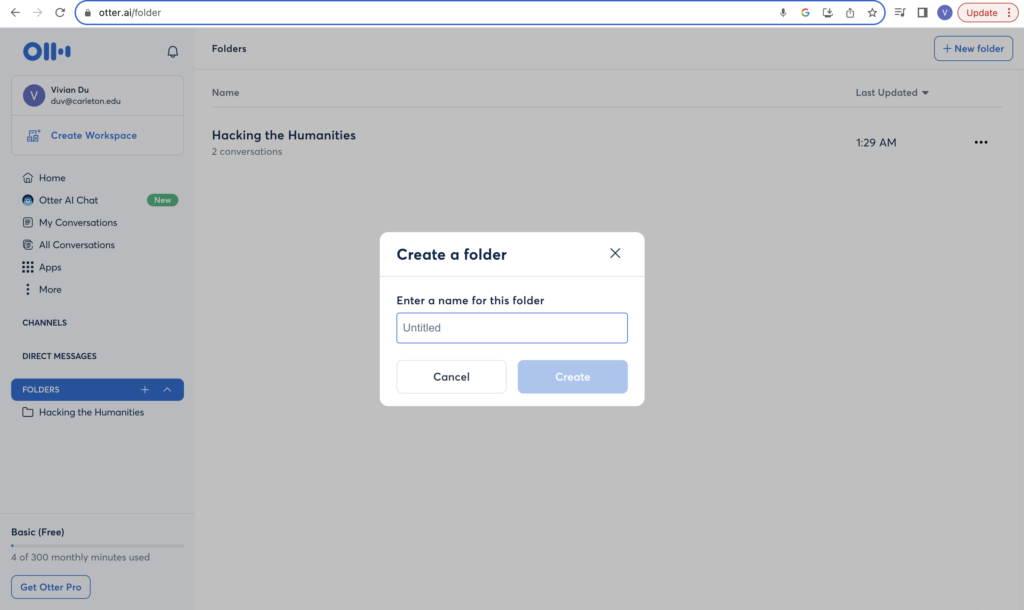
There is a Folder drop-down at the bottom of the Menu on the left of the page. Click on the plus sign to organize conversations by creating new folders and sorting conversations into them.
Step 5
If you would like to save the transcript in a standard format readable by other text analysis programs, go to the three dots in the top right corner that says More Options. Choose Export in the drop-down, and you will have the free option to save the transcript as a .txt file. (To save as a .docx, .pdf, and .srt file would require the paid PRO version of Otter.ai.)


Step 6
You can also have OtterPilot join a virtual meeting on Zoom, Google Meet, or Microsoft Teams to help you parse what your team members, project partners, and colleagues have to say without worrying about taking notes while paying attention. To do so, go back to the Home page and see in the lower right corner a list of upcoming meetings. (You will need to have granted Otter.ai access to your Google Calendar in the settings.) For any meeting audio you would like OtterPilot to transcribe, switch on the button that reads “OtterPilot will join this meeting.” After the meeting, the transcript will be automatically saved to All Conversations.

More
The tutorial video by The Accessibility Guy also walks you through the basic functions of Otter.ai in less than eight minutes. Check out this article for a brief discussion on the accuracy and privacy features of Otter.ai—topics of debate concerning the legitimate use of generative AI.

Wow, I didn’t realize that Otter could join a virtual meeting or that you could share and collaborate on transcriptions. This is a really interesting program, and I also think it might help make DH projects more accessible. Thanks so much for your tutorial!
Thank you for your tutorial. I was unaware there was a tool to transcribe audio recordings without a payment plan or subscription. I previously looked for a similar tool for another class assignment. Otter.ai has many more accessible features and functions other than analyzing text. As you said, this could help make future DH projects easier in their analysis.
This is so interesting. I didn’t know it was possible for Otter to join a virtual meeting or that it made it possible to collaborate on transcriptions. This is so cool and I never would’ve thought something like this existed. Thank you for bringing this me attention. I also love that you were so thorough with your tutorial.